> ## Documentation Index
> Fetch the complete documentation index at: https://docs.stablepayfi.ai/llms.txt
> Use this file to discover all available pages before exploring further.
# SHOPYY
This guide will help you integrate StablePay stablecoin payment functionality into your SHOPYY store.
## **1. Manage Your SHOPYY Store in StablePay**
**Prerequisites**: Please contact StablePay customer service to activate your merchant account. Your account credentials will be sent to your email.
**Steps**
1. Log in to the [**StablePay Merchant Dashboard**](https://merchant.stablepay.co/#/auth/login)
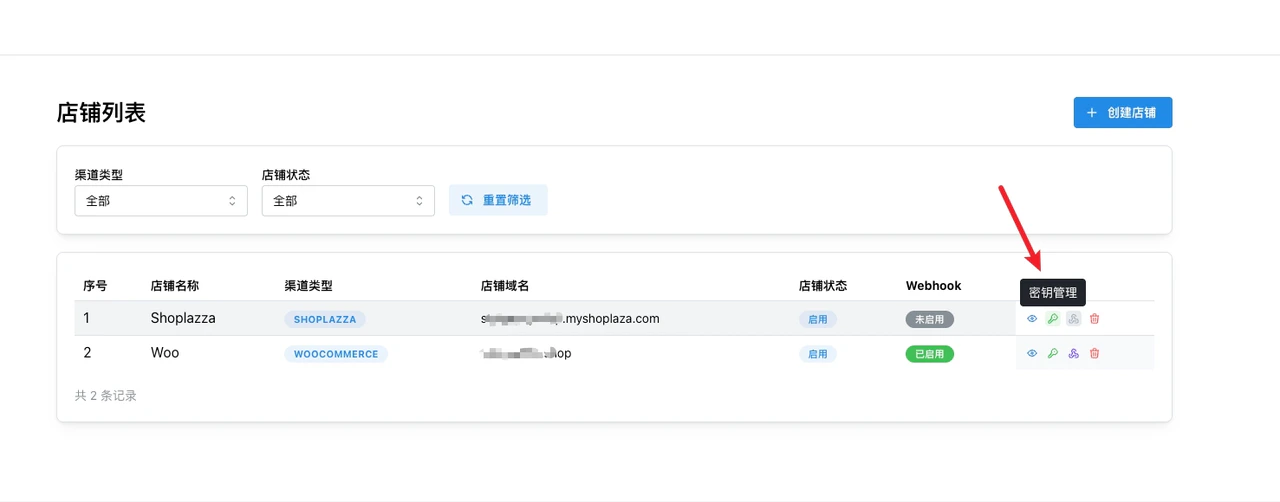
2. Navigate to the **Store Management** page, click **\[Create Store]**, select **SHOPYY** as the channel type, and submit for StablePay review
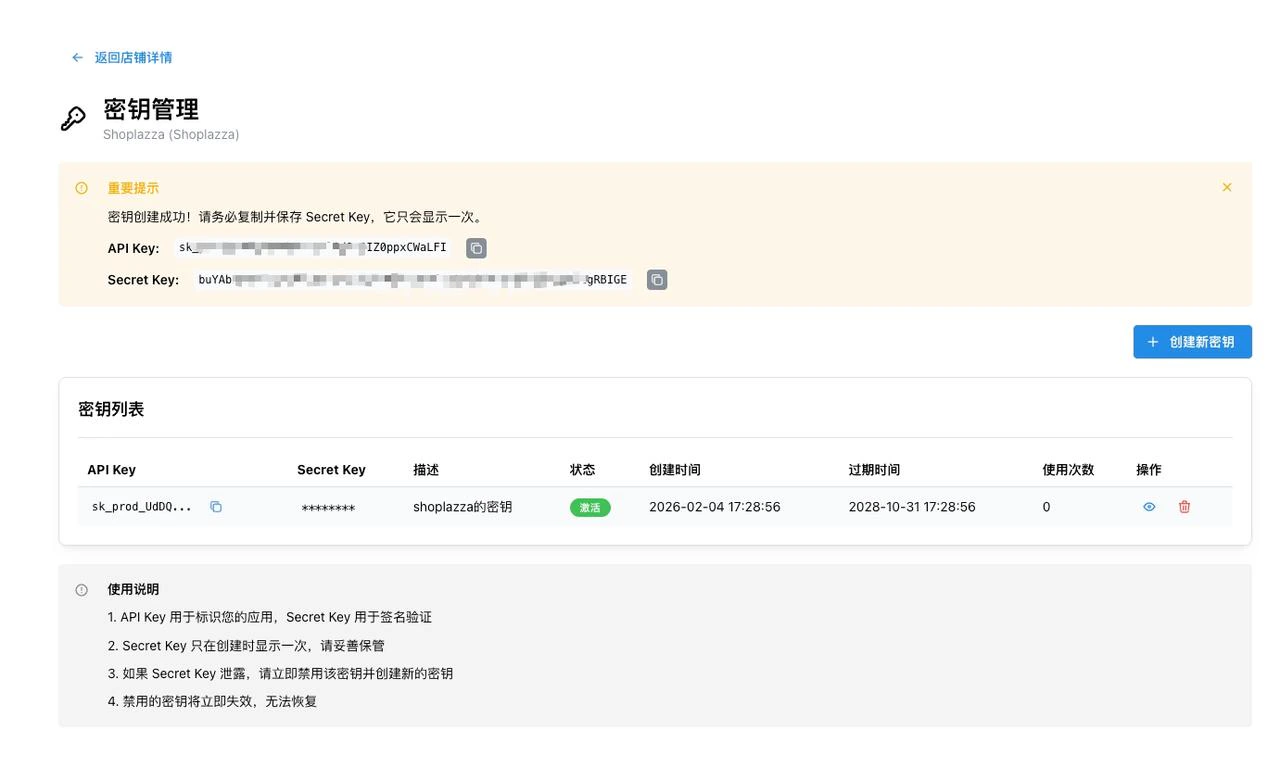
3. Once approved, you can obtain your **API Key**, **Secret Key**, and **Webhook Secret** from the store list operations
 ### **Configure Webhook URL**
Please replace `{yourdomain}` with your SHOPYY store domain:
```text theme={"system"}
https://{yourdomain}/homeapi/checkouts/server/stablepay/callback
```
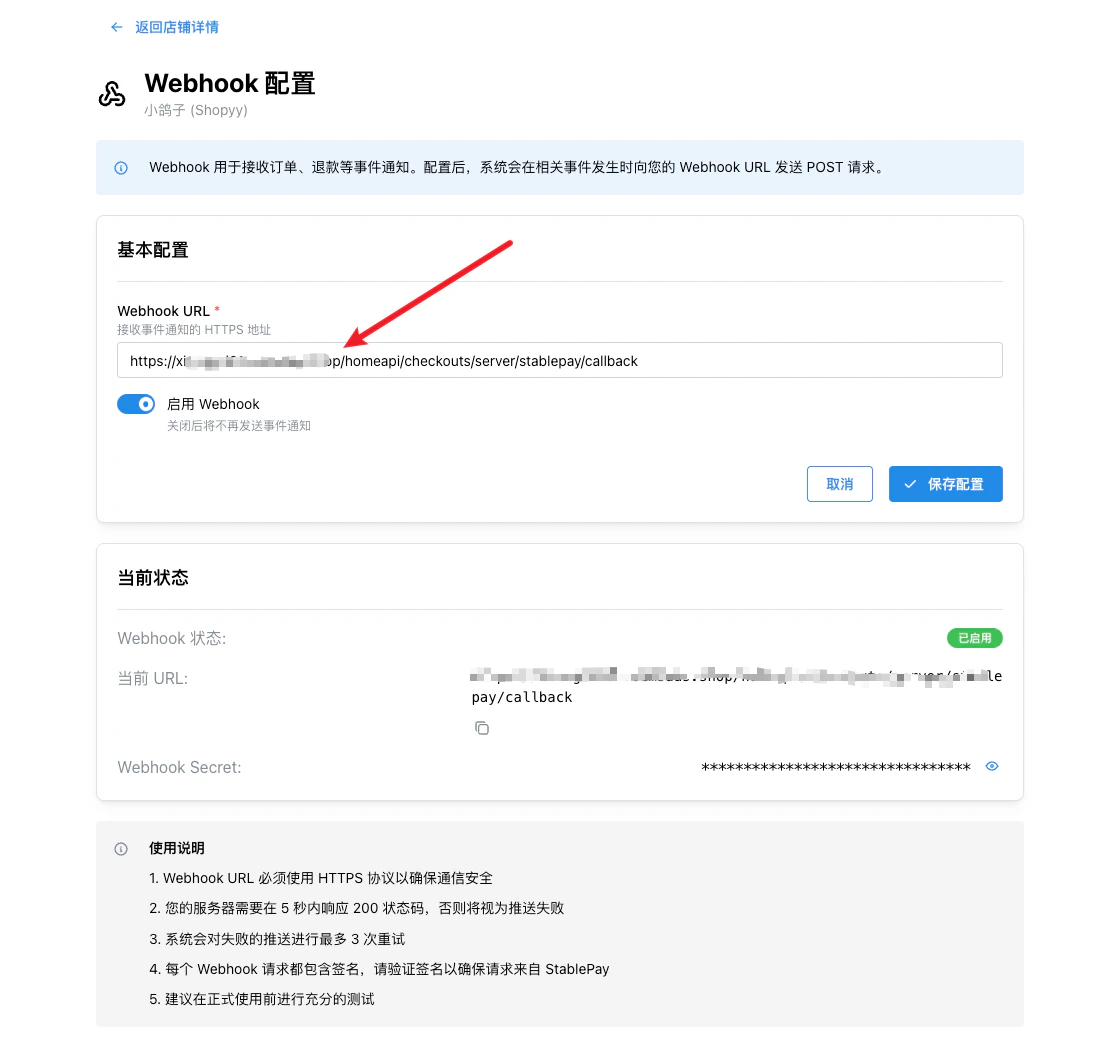
### **Configure Webhook URL**
Please replace `{yourdomain}` with your SHOPYY store domain:
```text theme={"system"}
https://{yourdomain}/homeapi/checkouts/server/stablepay/callback
```
 ## **2. Bind StablePay Application in SHOPYY Admin**
### **Step 2.1: Log in to SHOPYY Admin \[Store Settings - Payment Settings]**
## **2. Bind StablePay Application in SHOPYY Admin**
### **Step 2.1: Log in to SHOPYY Admin \[Store Settings - Payment Settings]**
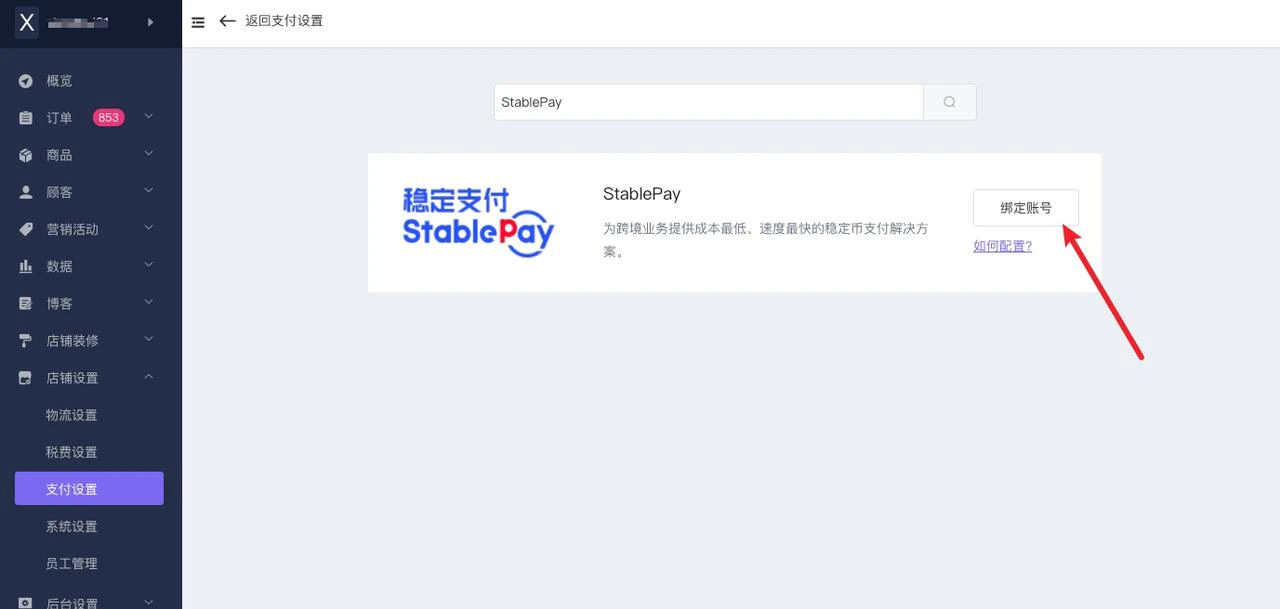 ### **Step 2.2: Bind Account**
Enter the **API Key**, **Secret Key**, and **Webhook Secret** created in the StablePay merchant dashboard.
### **Step 2.2: Bind Account**
Enter the **API Key**, **Secret Key**, and **Webhook Secret** created in the StablePay merchant dashboard.
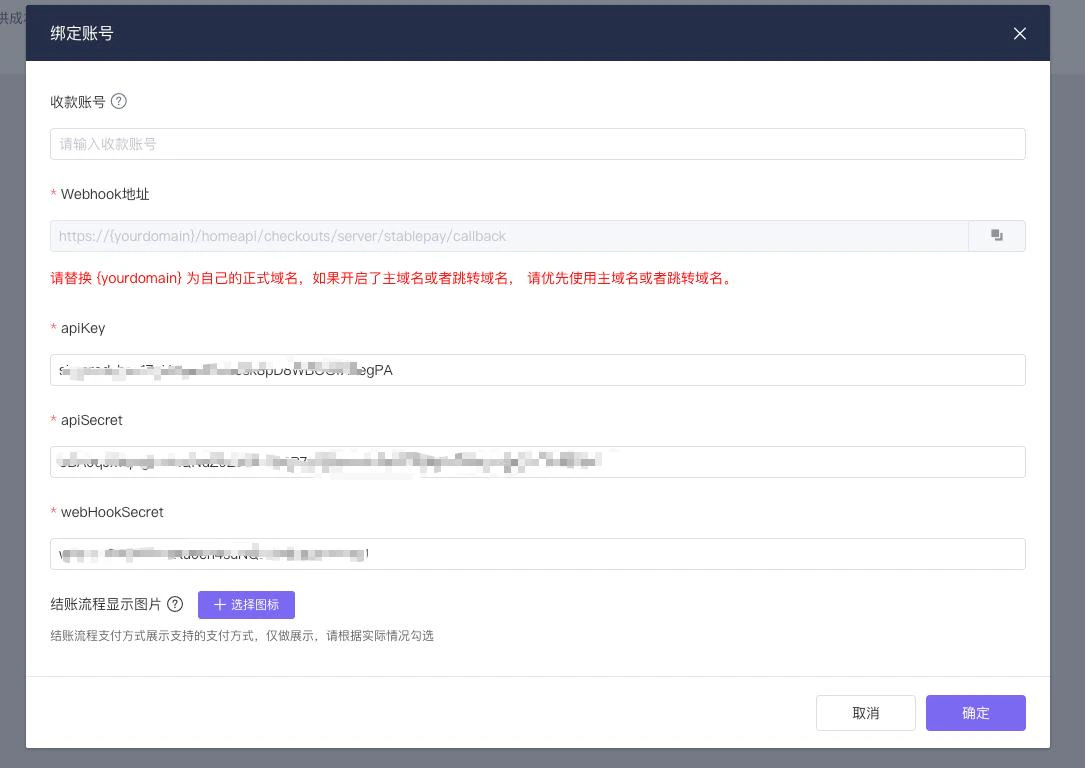 ### **Step 2.3: Edit Payment Display**
 | Configuration Item | Suggested Value |
| :------------------- | :------------------------------ |
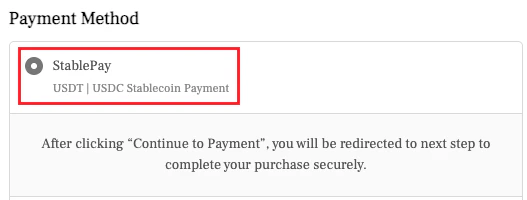
| Payment Name | StablePay |
| Frontend Description | USDT \| USDC Stablecoin Payment |
## **3. Installation Complete, Start Accepting Payments with StablePay**
Congratulations! You have successfully completed the integration of StablePay with SHOPYY, and can now start accepting stablecoin payments.
| Configuration Item | Suggested Value |
| :------------------- | :------------------------------ |
| Payment Name | StablePay |
| Frontend Description | USDT \| USDC Stablecoin Payment |
## **3. Installation Complete, Start Accepting Payments with StablePay**
Congratulations! You have successfully completed the integration of StablePay with SHOPYY, and can now start accepting stablecoin payments.