> ## Documentation Index
> Fetch the complete documentation index at: https://docs.stablepayfi.ai/llms.txt
> Use this file to discover all available pages before exploring further.

# Shoplazza

## **1. Manage Your Shoplazza Store in StablePay**

**Prerequisites**: Please contact StablePay customer service to open a merchant account. Your account credentials will be sent to your email.

**Steps**

1. Log in to the [**StablePay Merchant Portal**](https://merchant.stablepay.co/#/auth/login)
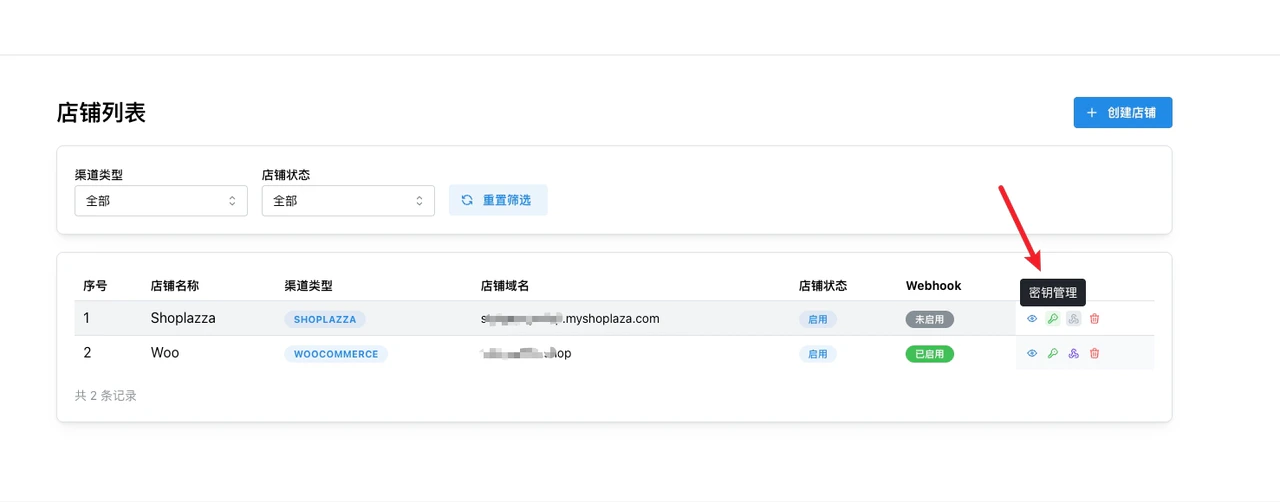
2. Go to the \[Store Management] page, click **\[Create Store]**, select **Shoplazza** as the channel type, and submit for StablePay review
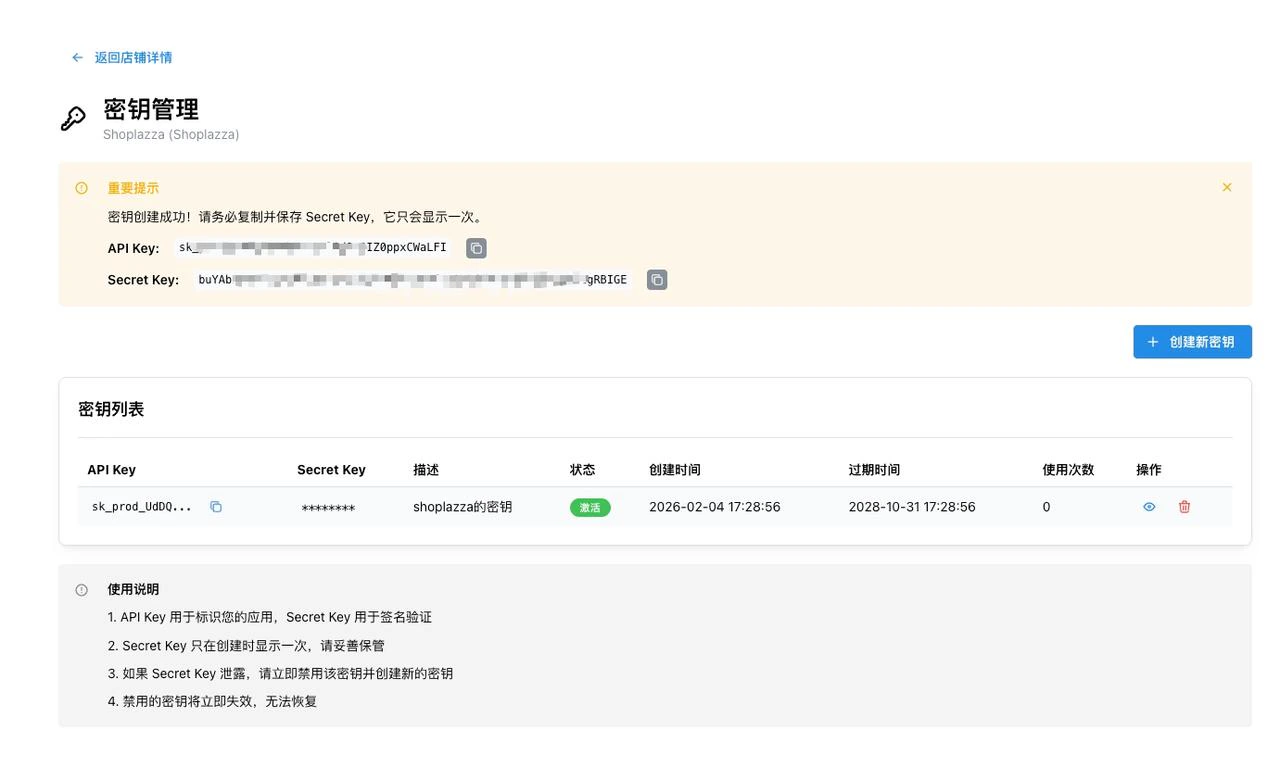
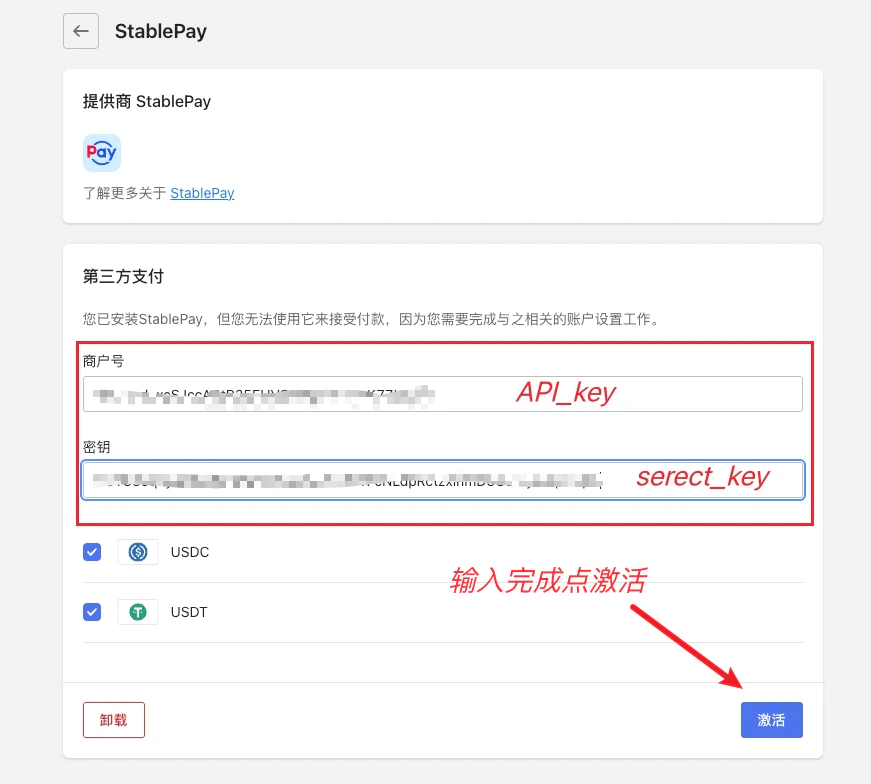
3. After approval, you can create and obtain your keys **API Key** and **Secret Key** from the store list
   <Frame>
     <img src="https://mintcdn.com/stablepay-a1f5fa99/Fks_RpQcbXNA6Py_/images/shoplazza/shoplazza1.png?fit=max&auto=format&n=Fks_RpQcbXNA6Py_&q=85&s=49c7d1a3a7b2f662e850a0d3766a9a78" alt="Shoplazza1" width="1280" height="502" data-path="images/shoplazza/shoplazza1.png" />
   </Frame>

<Frame>
  <img src="https://mintcdn.com/stablepay-a1f5fa99/Fks_RpQcbXNA6Py_/images/shoplazza/shoplazza2.jpeg?fit=max&auto=format&n=Fks_RpQcbXNA6Py_&q=85&s=5f510c8b4a82a39ac4195075cb1b2297" alt="Shoplazza2" width="1280" height="780" data-path="images/shoplazza/shoplazza2.jpeg" />
</Frame>

## **2. Install StablePay App in Shoplazza Admin**

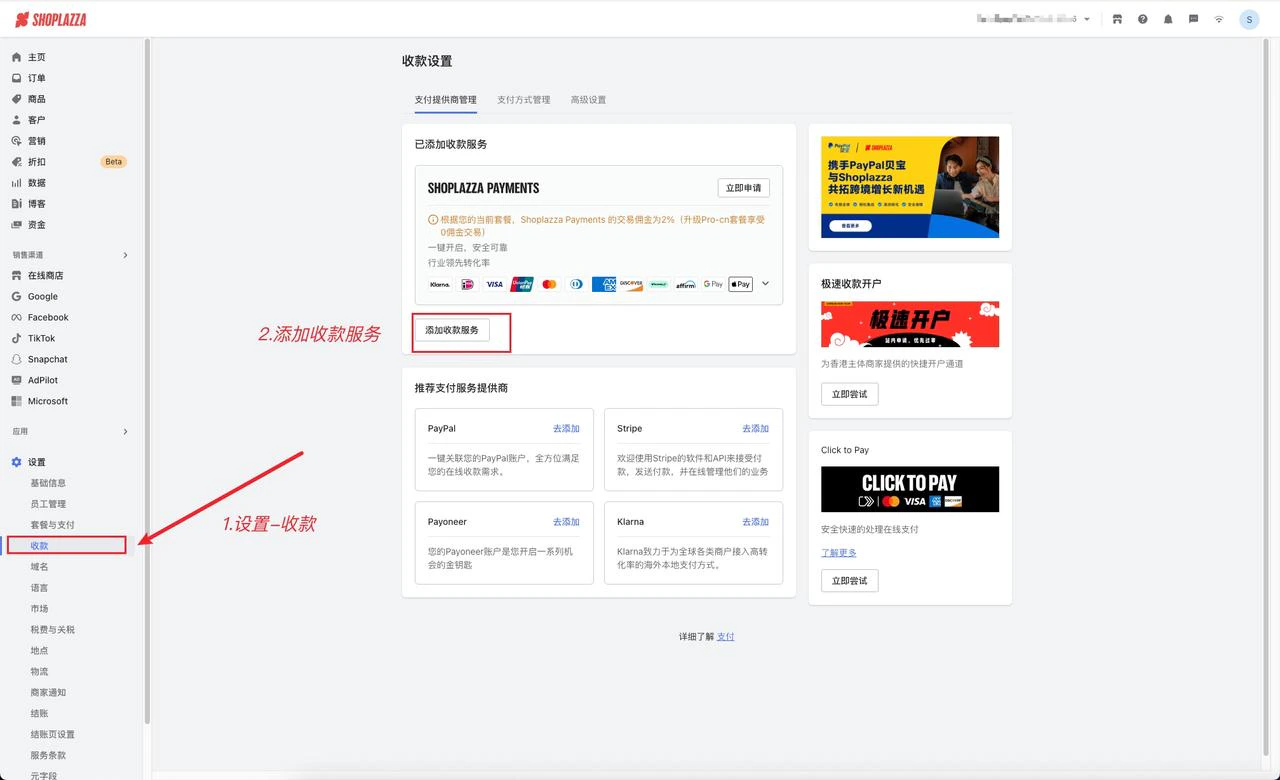
### **Step 2.1: Log in to Shoplazza Admin \[Settings - Payments]**
<Frame>
  <img src="https://mintcdn.com/stablepay-a1f5fa99/Fks_RpQcbXNA6Py_/images/shoplazza/shoplazza3.jpeg?fit=max&auto=format&n=Fks_RpQcbXNA6Py_&q=85&s=81f67566e509ebeee7b769d9aeb890fb" alt="Shoplazza3" width="1280" height="780" data-path="images/shoplazza/shoplazza3.jpeg" />
</Frame>

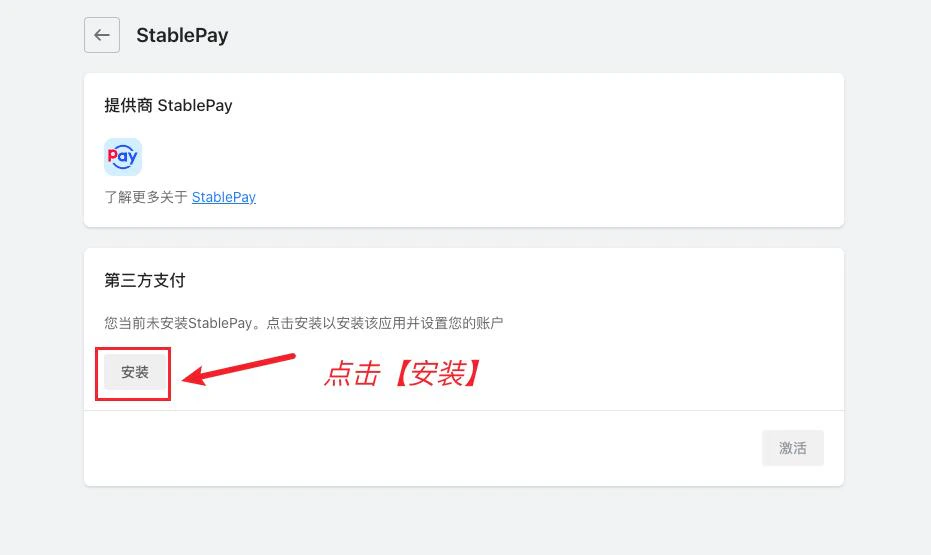
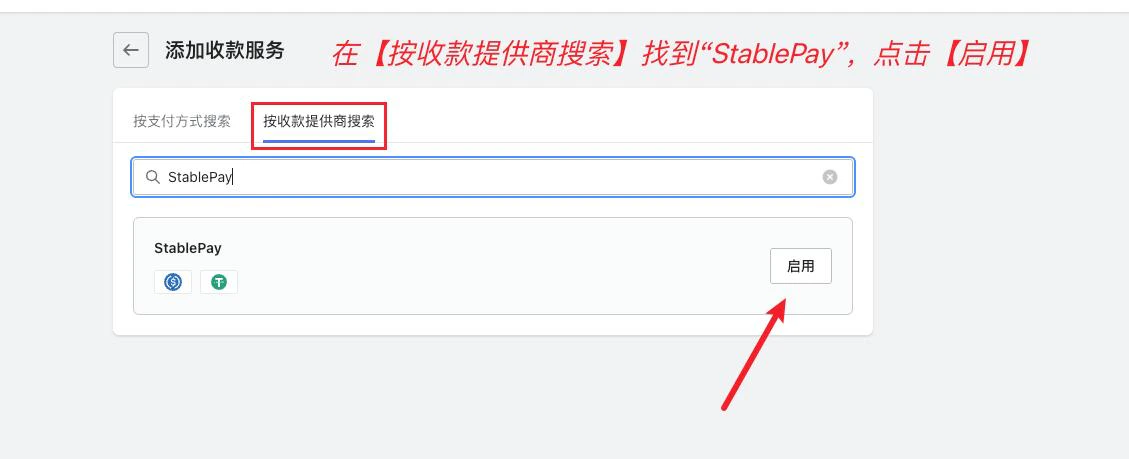
### **Step 2.2: Install StablePay Payment Service**
<Frame>
  <img src="https://mintcdn.com/stablepay-a1f5fa99/Fks_RpQcbXNA6Py_/images/shoplazza/shoplazza4.jpeg?fit=max&auto=format&n=Fks_RpQcbXNA6Py_&q=85&s=546349b0514c34856ef886b63d937edc" alt="Shoplazza4" width="1129" height="459" data-path="images/shoplazza/shoplazza4.jpeg" />
</Frame>

<Frame>
  <img src="https://mintcdn.com/stablepay-a1f5fa99/Fks_RpQcbXNA6Py_/images/shoplazza/shoplazza5.jpeg?fit=max&auto=format&n=Fks_RpQcbXNA6Py_&q=85&s=07b2c71c6c5e46f6711cba383fd45b01" alt="Shoplazza5" width="931" height="555" data-path="images/shoplazza/shoplazza5.jpeg" />
</Frame>

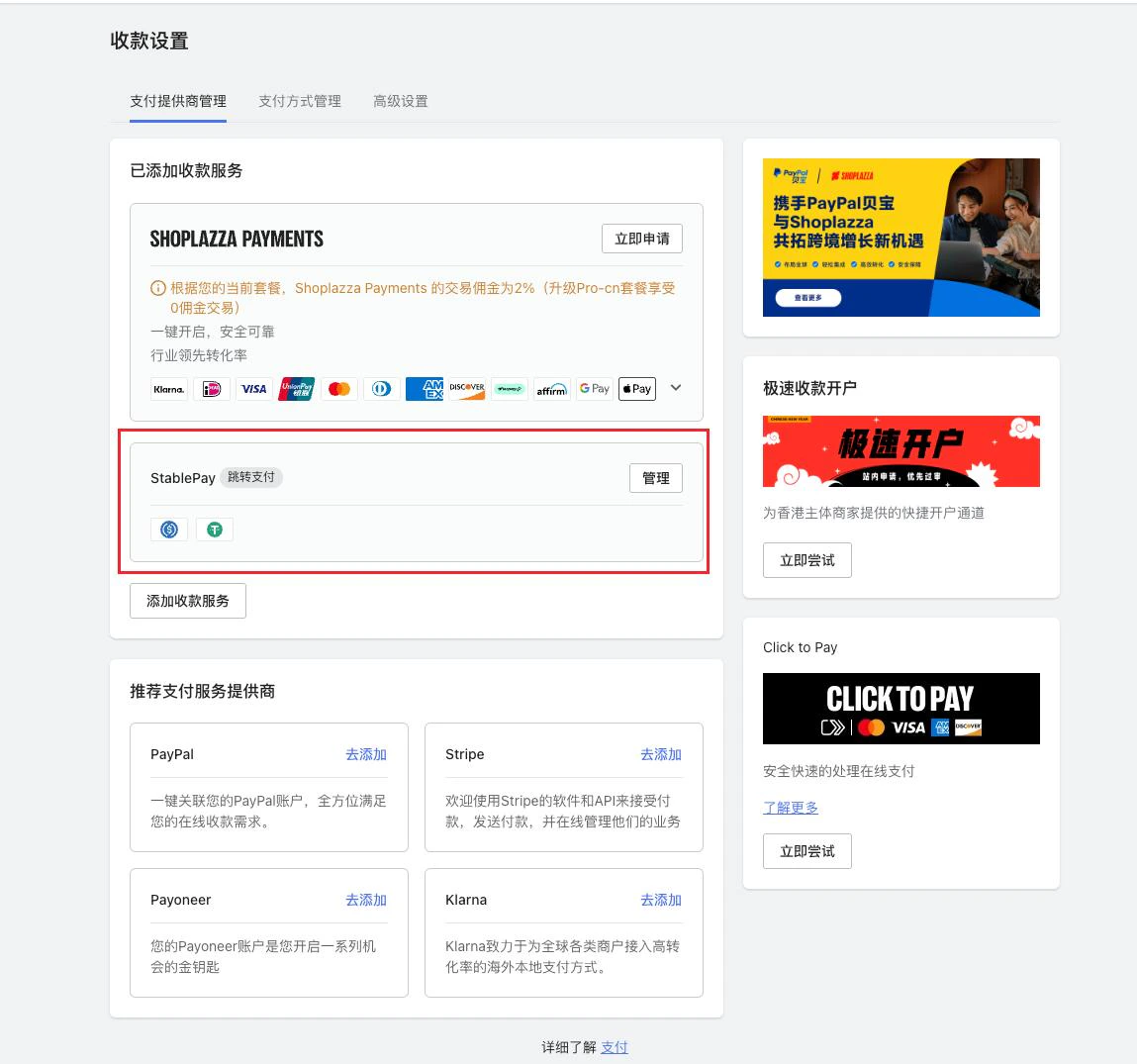
### **Step 2.3: Enter API Key, Secret Key and Activate**
<Frame>
  <img src="https://mintcdn.com/stablepay-a1f5fa99/Fks_RpQcbXNA6Py_/images/shoplazza/shoplazza6.png?fit=max&auto=format&n=Fks_RpQcbXNA6Py_&q=85&s=84598f9ad661d24cda75dd3ac84d5957" alt="Shoplazza6" width="871" height="784" data-path="images/shoplazza/shoplazza6.png" />
</Frame>

<Frame>
  <img src="https://mintcdn.com/stablepay-a1f5fa99/Fks_RpQcbXNA6Py_/images/shoplazza/shoplazza7.jpeg?fit=max&auto=format&n=Fks_RpQcbXNA6Py_&q=85&s=c1fc064082e0ea8edf7596a0de327aea" alt="Shoplazza7" width="1149" height="1075" data-path="images/shoplazza/shoplazza7.jpeg" />
</Frame>

## **3. Installation Complete, Start Accepting Payments with StablePay**

Congratulations! You have successfully completed the integration between StablePay and Shoplazza, and can now start accepting stablecoin payments.

<Frame>
  <img src="https://mintcdn.com/stablepay-a1f5fa99/Fks_RpQcbXNA6Py_/images/shoplazza/shoplazza8.jpeg?fit=max&auto=format&n=Fks_RpQcbXNA6Py_&q=85&s=25e09ec13b93faeb97fe75c27d4e7817" alt="Shoplazza8" width="1176" height="1058" data-path="images/shoplazza/shoplazza8.jpeg" />
</Frame>