> ## Documentation Index
> Fetch the complete documentation index at: https://docs.stablepayfi.ai/llms.txt
> Use this file to discover all available pages before exploring further.
# WooCommerce
This guide helps merchants quickly integrate the StablePay WooCommerce payment plugin, enabling stablecoin payment capabilities for your WooCommerce store.
## **1. Prerequisites**
### **1.1 System Requirements**
Before starting the integration, please ensure your WordPress environment meets the following requirements:
| Item | Minimum Version | Recommended Version |
| :---------- | :-------------- | :------------------ |
| PHP | 7.4+ | 8.0+ |
| WordPress | 5.8+ | Latest |
| WooCommerce | 6.0+ | Latest |
**Required PHP Extensions**:
* cURL (for API communication)
* JSON (for data processing)
### **1.2 Obtaining a StablePay Merchant Account**
Please contact StablePay support to activate your merchant account. After activation:
1. Log in to the [**StablePay Merchant Dashboard**](https://merchant.stablepay.co/#/auth/login)
2. Navigate to **Store Management**, click **\[Create Store]**, select **WooCommerce** as the channel type, and submit for StablePay review
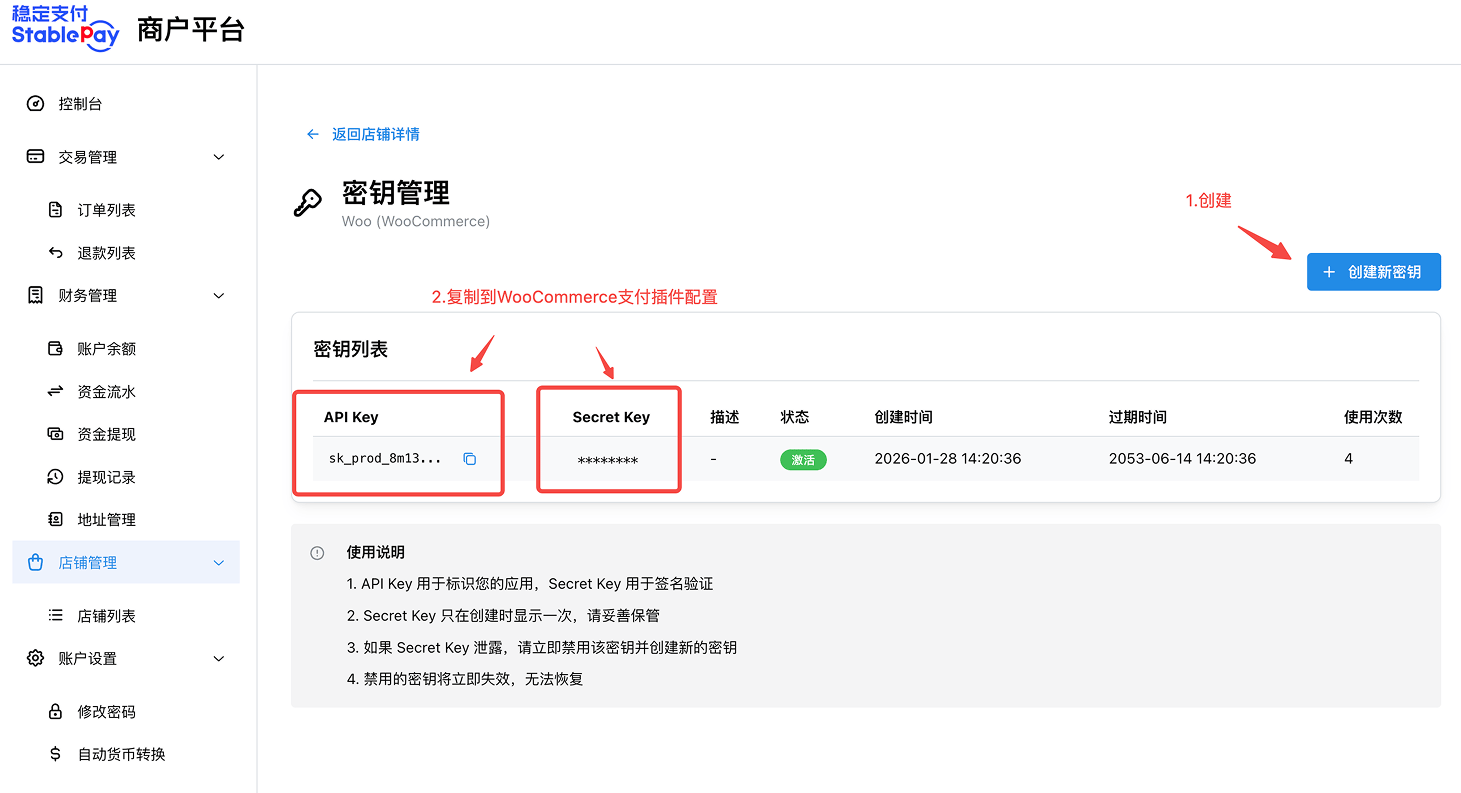
3. Once approved, you can obtain your API Key, Secret Key, and Webhook Secret from the store list
## **2. Plugin Installation**
### **2.1 Download the Plugin Package**
Click to download the latest version of the plugin package:
[**📦 Download stablepay-woocommerce-1.0.0.zip**](https://docs.stablepayfi.ai/downloads/stablepay-woocommerce-1.0.0.zip)
### **2.2 Method 1: WordPress Admin Installation (Recommended)**
1. Log in to your WordPress admin dashboard
2. Navigate to **Plugins** → **Add New** → **Upload Plugin**
3. Click **Choose File** and select `stablepay-woocommerce-x.x.x.zip`
4. Click **Install Now**
5. After installation, click **Activate Plugin**
### **2.3 Method 2: Manual FTP Installation**
1. Extract `stablepay-woocommerce-x.x.x.zip`
2. Upload the extracted `stablepay-woocommerce` directory to `wp-content/plugins/` via FTP/SFTP
3. Log in to your WordPress dashboard and navigate to the **Plugins** page
4. Find **StablePay for WooCommerce** and click **Activate**
## **3. Plugin Configuration**
### **3.1 Accessing the Settings Page**
After activating the plugin, access the configuration page using one of the following methods:
* **Method 1**: WordPress Dashboard → WooCommerce → Settings → Payments → StablePay
* **Method 2**: WordPress Dashboard → Plugins → Installed Plugins → StablePay for WooCommerce → Settings
### **3.2 Basic Settings**
| Configuration Item | Description | Suggested Value |
| :------------------ | :----------------------------------------------------------- | :---------------------------------------------------------------- |
| Enable/Disable | Whether to display StablePay as a payment option at checkout | Enabled |
| Payment Title | The payment method name displayed at checkout | StablePay - Stablecoin Payment |
| Payment Description | Brief description of the payment method | Pay securely and instantly with USDT, USDC, and other stablecoins |
### **3.3 API Configuration**
| Configuration Item | Description | Example |
| :----------------- | :------------------------------------------------------------- | :-------------- |
| API Key | API Key obtained from the StablePay dashboard | ak\_xxxxxxxx |
| Secret Key | Signature key obtained from the StablePay dashboard | sk\_xxxxxxxx |
| Webhook Secret | Webhook verification key obtained from the StablePay dashboard | whsec\_xxxxxxxx |
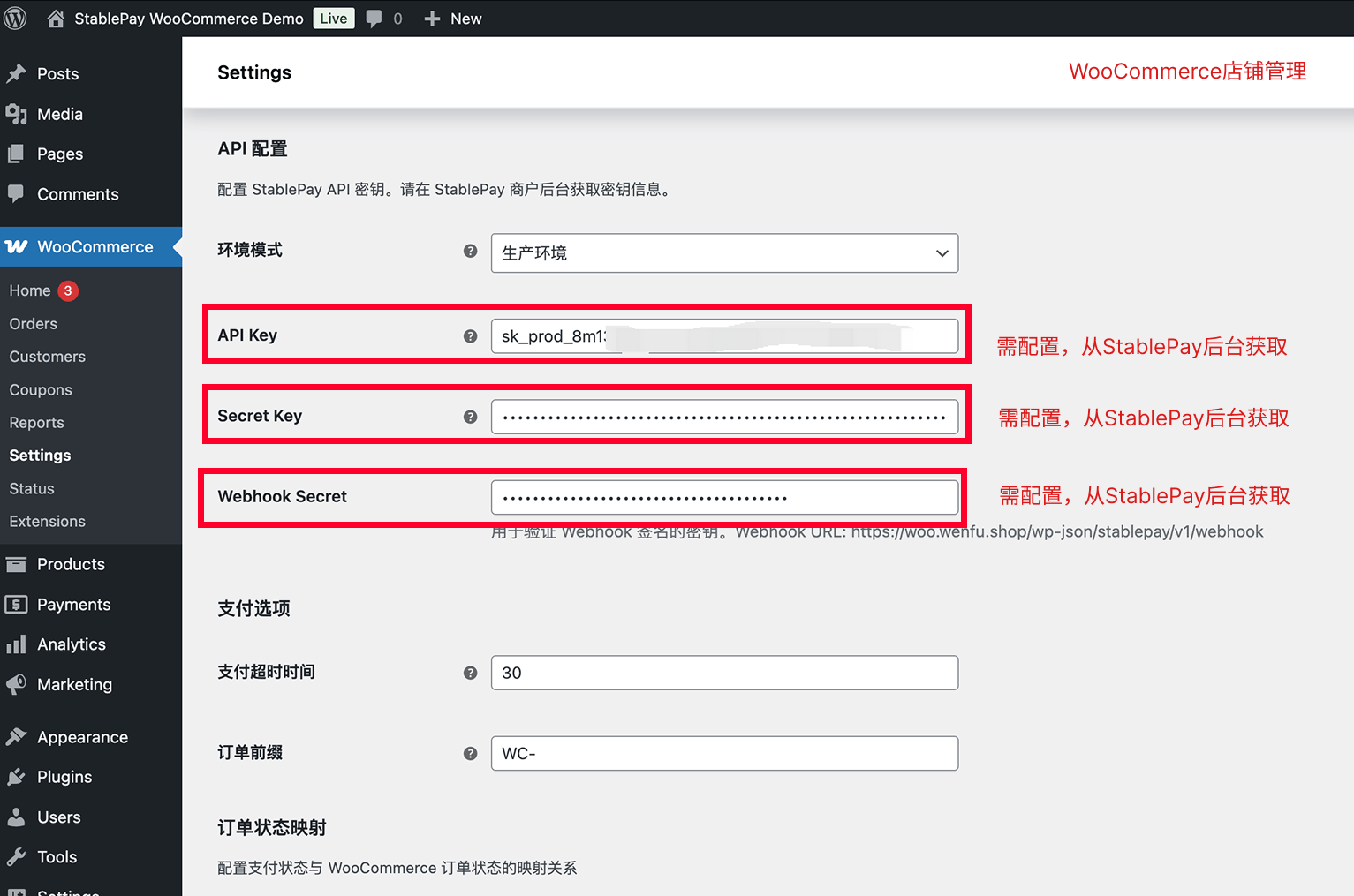 **Step 1: Log in to the StablePay Merchant Dashboard and navigate to Store Management**
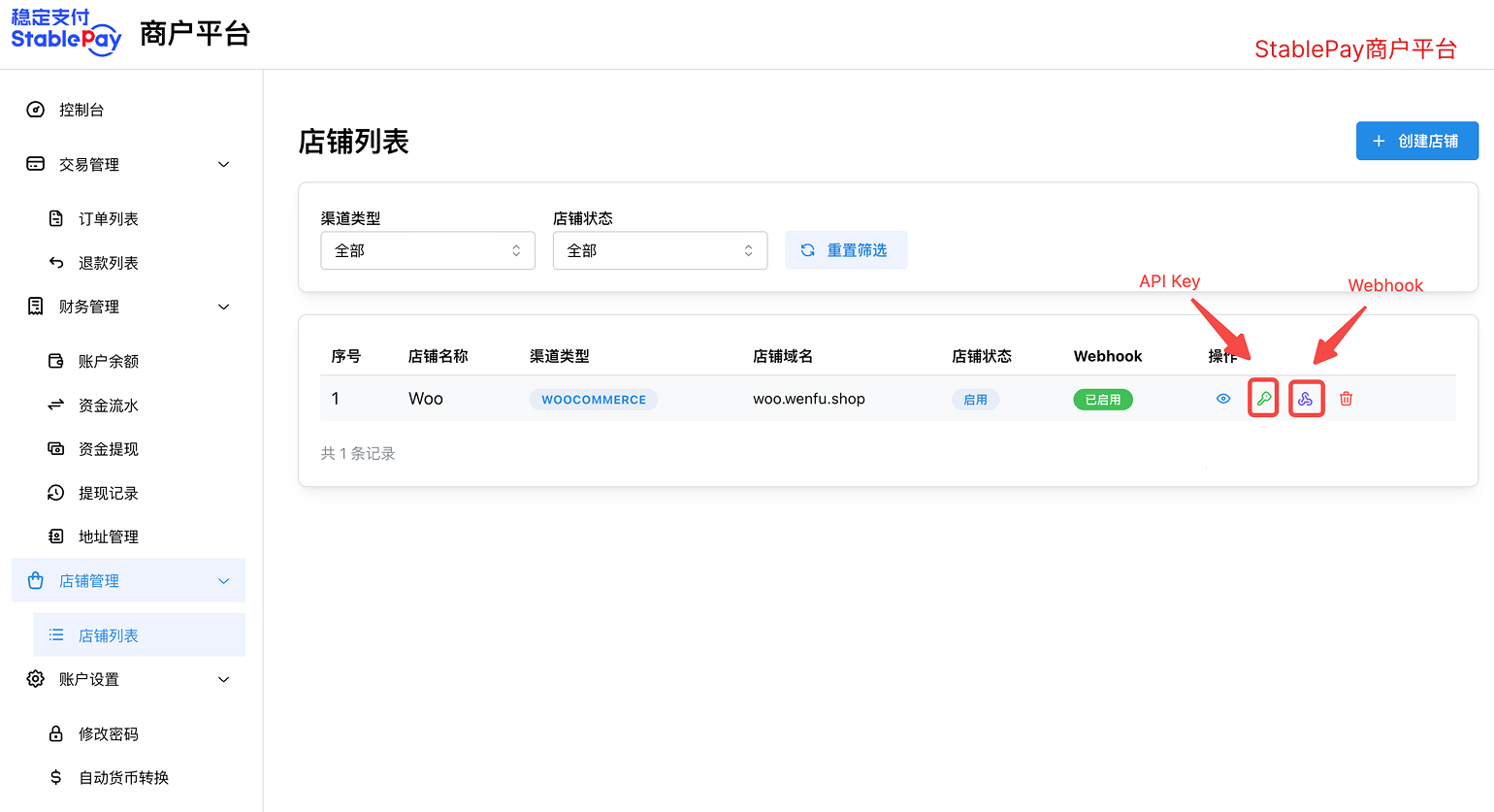 **Step 2: Create API Key**
 **Step 3: Obtain Webhook Secret**
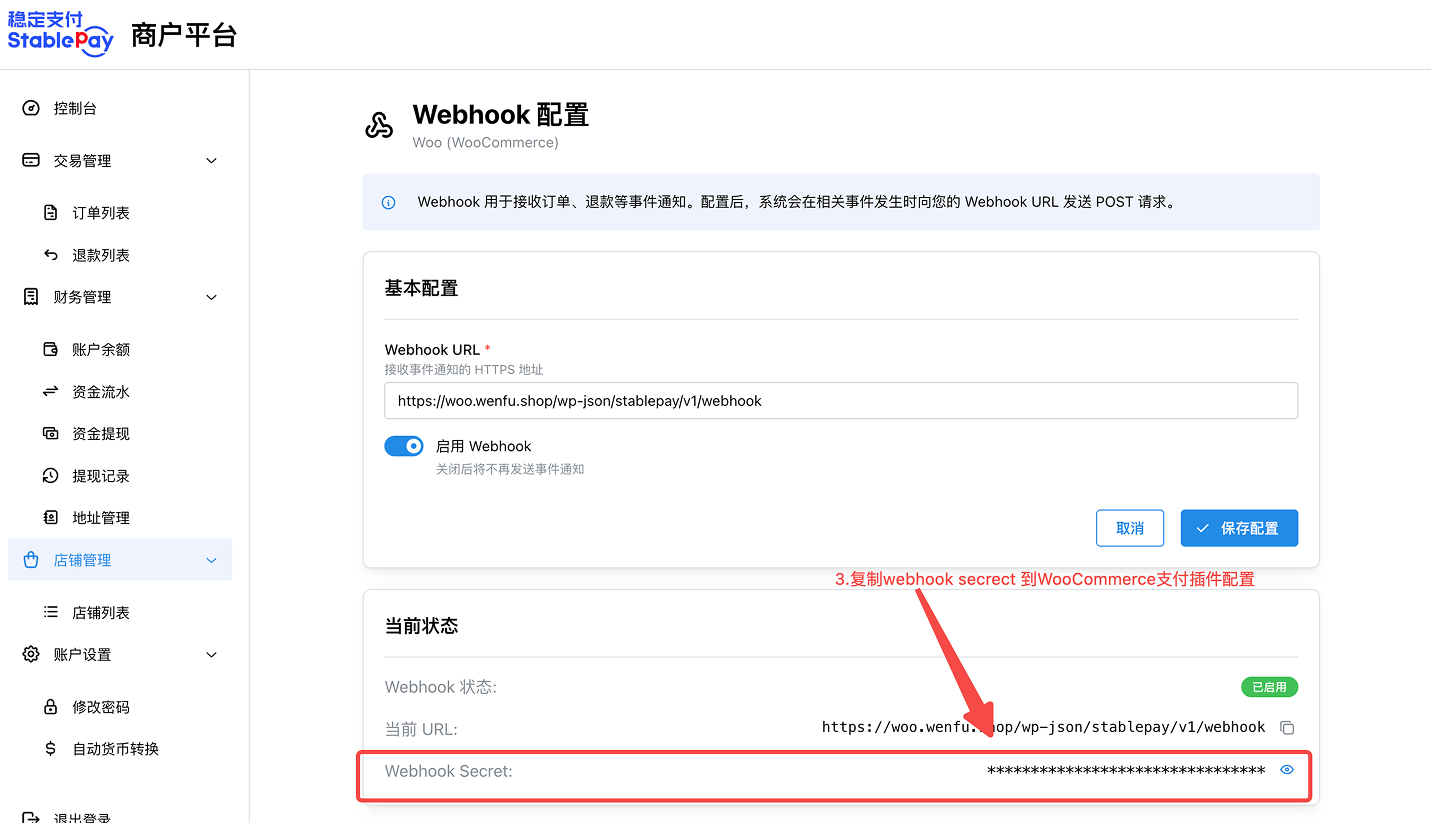 **Security Notice**: Secret Key and Webhook Secret are sensitive information. Do not disclose them to others.
### **3.4 Configuring Webhooks**
Webhooks are used to receive real-time payment status notifications. Once configured, the plugin will automatically generate the Webhook URL.
**Webhook URL Format**:
```text theme={"system"}
https://your-domain.com/wp-json/stablepay/v1/webhook
```
Please configure this URL in the StablePay Merchant Dashboard:
1. Log in to the [**StablePay Merchant Dashboard**](https://merchant.stablepay.co/#/auth/login)
2. Navigate to **Store Management** and manage your Webhook URL
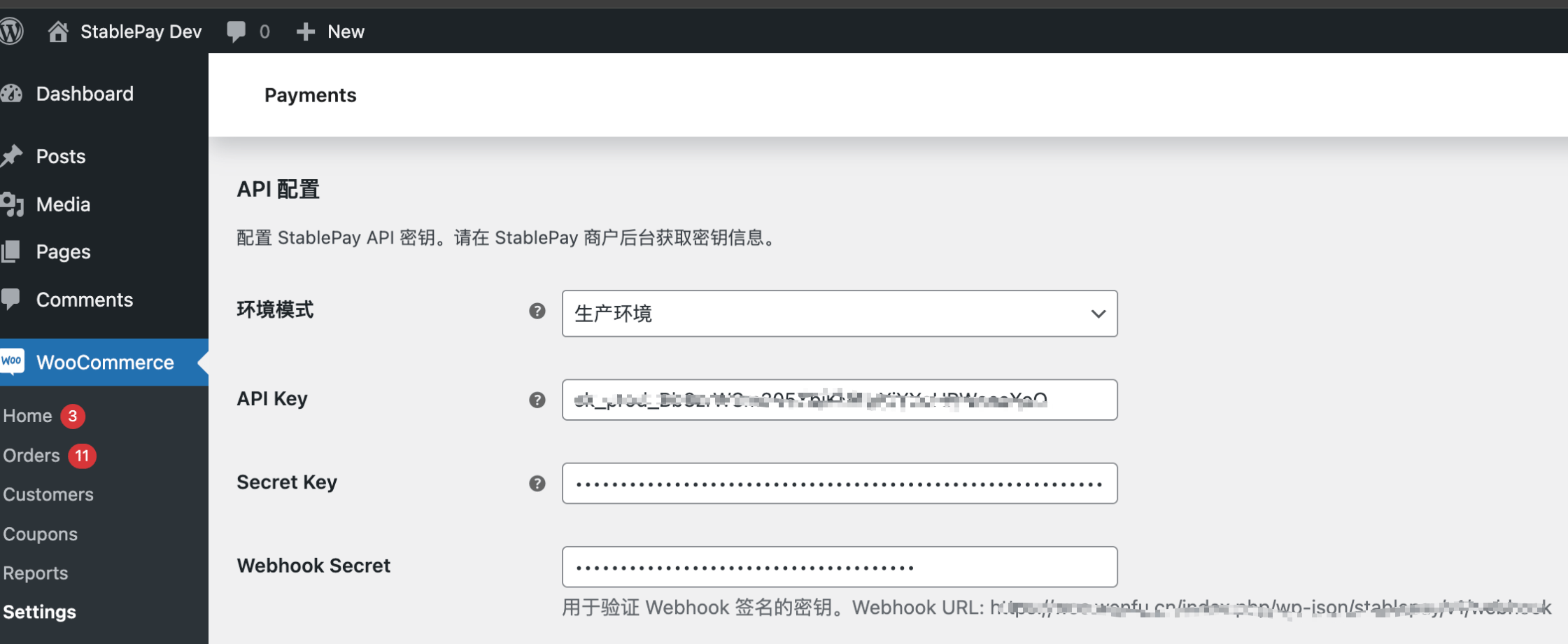
**Note**
The Webhook URL must be viewed from the WordPress dashboard, not the store URL address.
Viewing Webhook URL in WordPress:
**Security Notice**: Secret Key and Webhook Secret are sensitive information. Do not disclose them to others.
### **3.4 Configuring Webhooks**
Webhooks are used to receive real-time payment status notifications. Once configured, the plugin will automatically generate the Webhook URL.
**Webhook URL Format**:
```text theme={"system"}
https://your-domain.com/wp-json/stablepay/v1/webhook
```
Please configure this URL in the StablePay Merchant Dashboard:
1. Log in to the [**StablePay Merchant Dashboard**](https://merchant.stablepay.co/#/auth/login)
2. Navigate to **Store Management** and manage your Webhook URL
**Note**
The Webhook URL must be viewed from the WordPress dashboard, not the store URL address.
Viewing Webhook URL in WordPress:
 ### **3.5 Payment Options**
| Configuration Item | Description | Default Value |
| :----------------- | :--------------------------------------------------------- | :------------ |
| Payment Timeout | Payment session validity period (minutes) | 30 |
| Order Prefix | Prefix for StablePay order numbers to help identify source | WC- |
## **4. Testing and Verification**
After configuration, we recommend placing a small test order to confirm the payment flow works correctly.
### **4.1 Verification Checklist**
* [ ] StablePay payment option is visible on the checkout page
* [ ] Selecting StablePay redirects correctly to the payment page
* [ ] Automatic redirect back to merchant website after payment completion
* [ ] Order status automatically updates to "Processing"
* [ ] StablePay payment information is visible on the order details page
## **5. Daily Operations**
### **5.1 Viewing Order Payment Information**
1. Navigate to WordPress Dashboard → WooCommerce → Orders
2. Click the order number to view details
3. In the **StablePay Payment Information** section, you can view:
* Payment Session ID
* Payment Currency
* Actual Amount Received
* Transaction Hash (viewable on blockchain explorer)
### **5.2 Processing Refunds**
1. On the order details page, click **Refund**
2. Enter the refund amount and reason
3. Click **Refund via StablePay**
4. Wait for the refund to be processed
**Refund Instructions**:
* Only paid orders can be refunded
* Full and partial refunds are supported
* Refund must be requested within 180 days of payment
* Refunds will be returned to the customer's original wallet
## **6. Frequently Asked Questions**
### **Q1: What should I do if the plugin fails to activate?**
**Checklist**:
* Is PHP version ≥ 7.4?
* Is WordPress version ≥ 5.8?
* Is WooCommerce installed and activated?
* Is the cURL extension enabled?
### **Q2: Payment succeeded but order status not updated?**
**Possible Causes**:
* Webhook URL not configured or incorrectly configured
* Incorrect Webhook Secret
* Server firewall blocking callback requests
**Solution**:
1. Confirm the Webhook URL is correctly configured in the StablePay dashboard
2. Verify the Webhook Secret matches
3. Check server firewall settings
4. Review logs to confirm webhook requests are being received
## **7. Technical Support**
For any questions, please contact us through the following channels:
* **Website**: [https://stablepayfi.ai](https://stablepayfi.ai)
* **Merchant Dashboard**: [https://merchant.stablepay.co](https://merchant.stablepay.co)
* **Technical Support Email**: [support@stablepay.co](mailto:support@stablepay.co)
* **Documentation Center**: [https://docs.stablepayfi.ai](https://docs.stablepayfi.ai)
### **3.5 Payment Options**
| Configuration Item | Description | Default Value |
| :----------------- | :--------------------------------------------------------- | :------------ |
| Payment Timeout | Payment session validity period (minutes) | 30 |
| Order Prefix | Prefix for StablePay order numbers to help identify source | WC- |
## **4. Testing and Verification**
After configuration, we recommend placing a small test order to confirm the payment flow works correctly.
### **4.1 Verification Checklist**
* [ ] StablePay payment option is visible on the checkout page
* [ ] Selecting StablePay redirects correctly to the payment page
* [ ] Automatic redirect back to merchant website after payment completion
* [ ] Order status automatically updates to "Processing"
* [ ] StablePay payment information is visible on the order details page
## **5. Daily Operations**
### **5.1 Viewing Order Payment Information**
1. Navigate to WordPress Dashboard → WooCommerce → Orders
2. Click the order number to view details
3. In the **StablePay Payment Information** section, you can view:
* Payment Session ID
* Payment Currency
* Actual Amount Received
* Transaction Hash (viewable on blockchain explorer)
### **5.2 Processing Refunds**
1. On the order details page, click **Refund**
2. Enter the refund amount and reason
3. Click **Refund via StablePay**
4. Wait for the refund to be processed
**Refund Instructions**:
* Only paid orders can be refunded
* Full and partial refunds are supported
* Refund must be requested within 180 days of payment
* Refunds will be returned to the customer's original wallet
## **6. Frequently Asked Questions**
### **Q1: What should I do if the plugin fails to activate?**
**Checklist**:
* Is PHP version ≥ 7.4?
* Is WordPress version ≥ 5.8?
* Is WooCommerce installed and activated?
* Is the cURL extension enabled?
### **Q2: Payment succeeded but order status not updated?**
**Possible Causes**:
* Webhook URL not configured or incorrectly configured
* Incorrect Webhook Secret
* Server firewall blocking callback requests
**Solution**:
1. Confirm the Webhook URL is correctly configured in the StablePay dashboard
2. Verify the Webhook Secret matches
3. Check server firewall settings
4. Review logs to confirm webhook requests are being received
## **7. Technical Support**
For any questions, please contact us through the following channels:
* **Website**: [https://stablepayfi.ai](https://stablepayfi.ai)
* **Merchant Dashboard**: [https://merchant.stablepay.co](https://merchant.stablepay.co)
* **Technical Support Email**: [support@stablepay.co](mailto:support@stablepay.co)
* **Documentation Center**: [https://docs.stablepayfi.ai](https://docs.stablepayfi.ai)