
Open Telegram notification settings
Go directly to the Telegram notification settings page in the StablePay Portal to configure your Bot Token and group binding.
When to use it
Consider enabling this feature when:- you want your team to see successful, failed, or expired payments in real time in Telegram
- you need faster visibility into underpaid, overpaid, or risk-review payment cases
- you want merchant order IDs included in notifications for reconciliation
- your operations flow depends on internal teams acting on payment events, not only on system callbacks
Feature overview
The current release supports payment-related notifications in Telegram, including:- Payment succeeded notifications
- Payment failed notifications
- Payment expired notifications
- Underpaid and overpaid payment alerts
- Risk review payment alerts
- Includes merchant order ID for reconciliation
Before you start
Before setup, make sure:- you have a Telegram account you can log in to
- you can use @BotFather to create a Telegram Bot
- you already have, or are ready to create, a Telegram group for receiving notifications
How to set it up
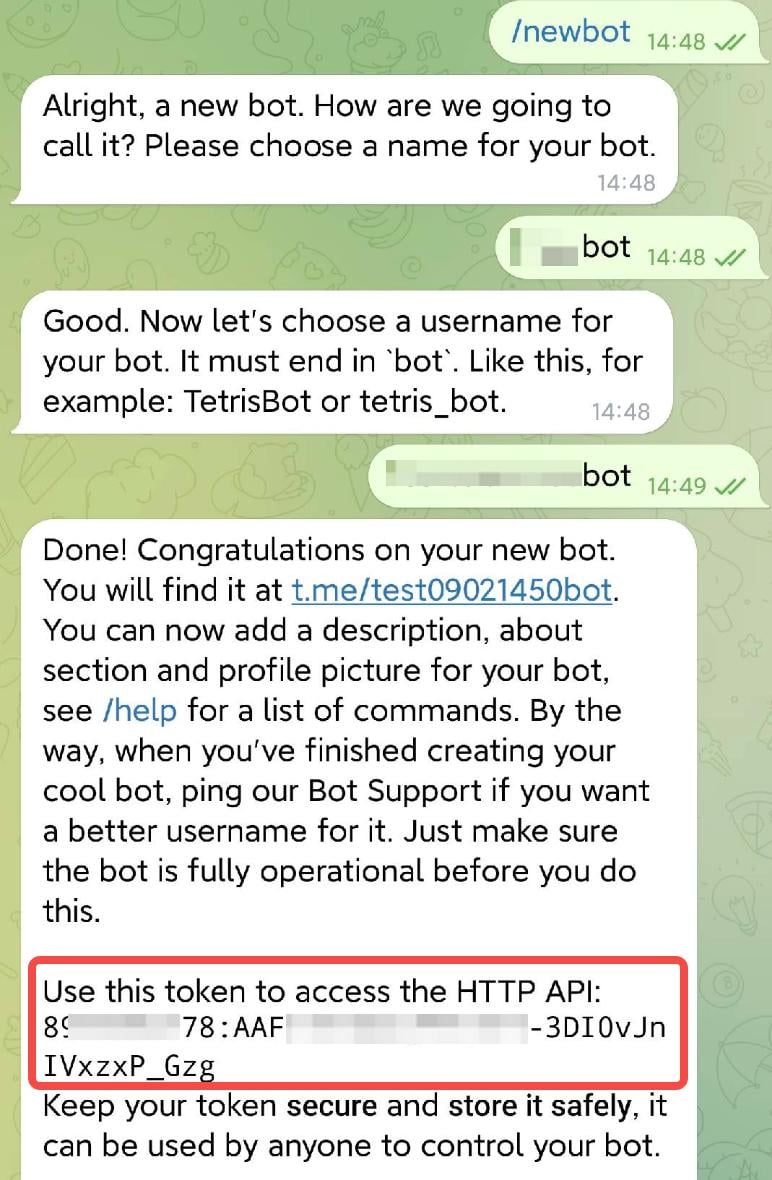
Step 1: Create a Telegram Bot with BotFather
Every Telegram Bot needs an API Token issued by@BotFather.
- Open Telegram and search for @BotFather
- Send
/newbot - Set a Bot display name, such as
stablepay bot - Set a unique username ending in
bot, such asstablepay1bot - Copy the API Token returned by BotFather
Step 2: Save the Bot Token in the merchant portal
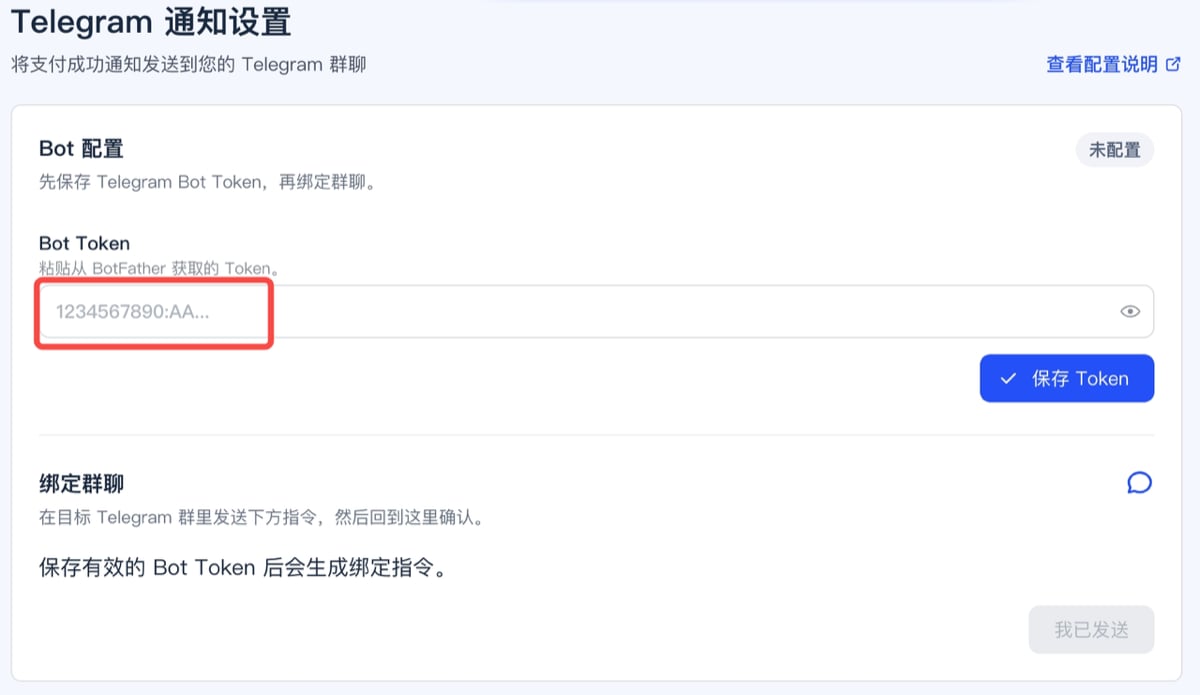
Open the Telegram notification settings page, paste the Bot Token, and save it.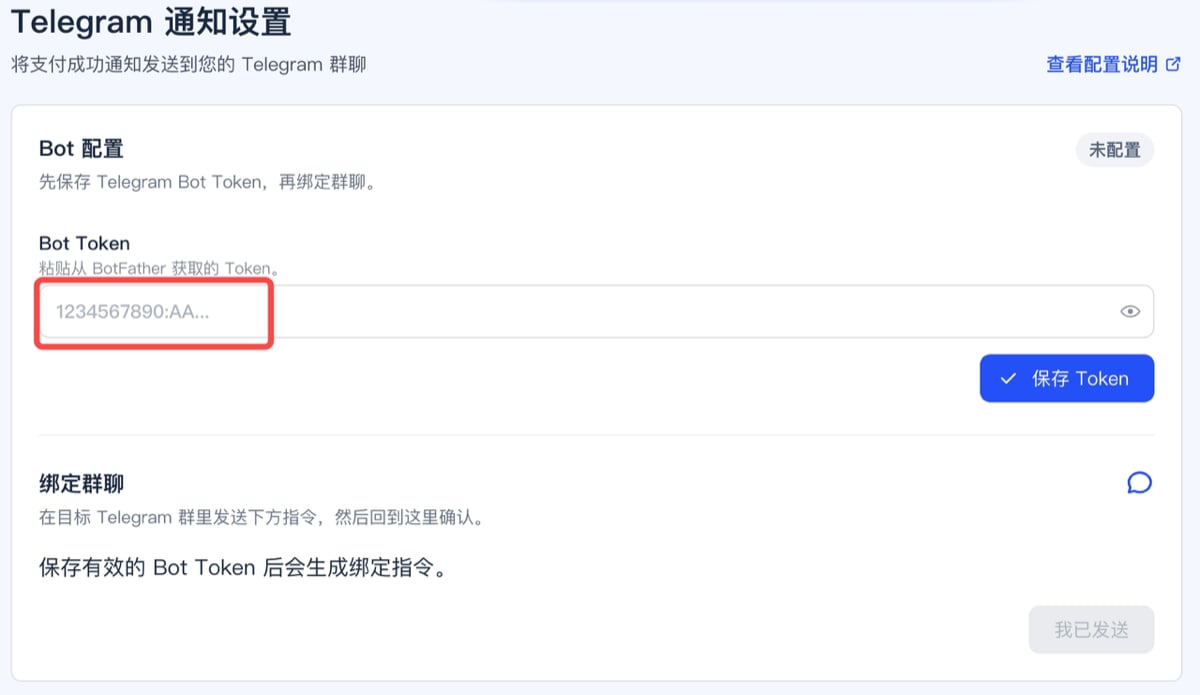
Step 3: Create the group and complete binding
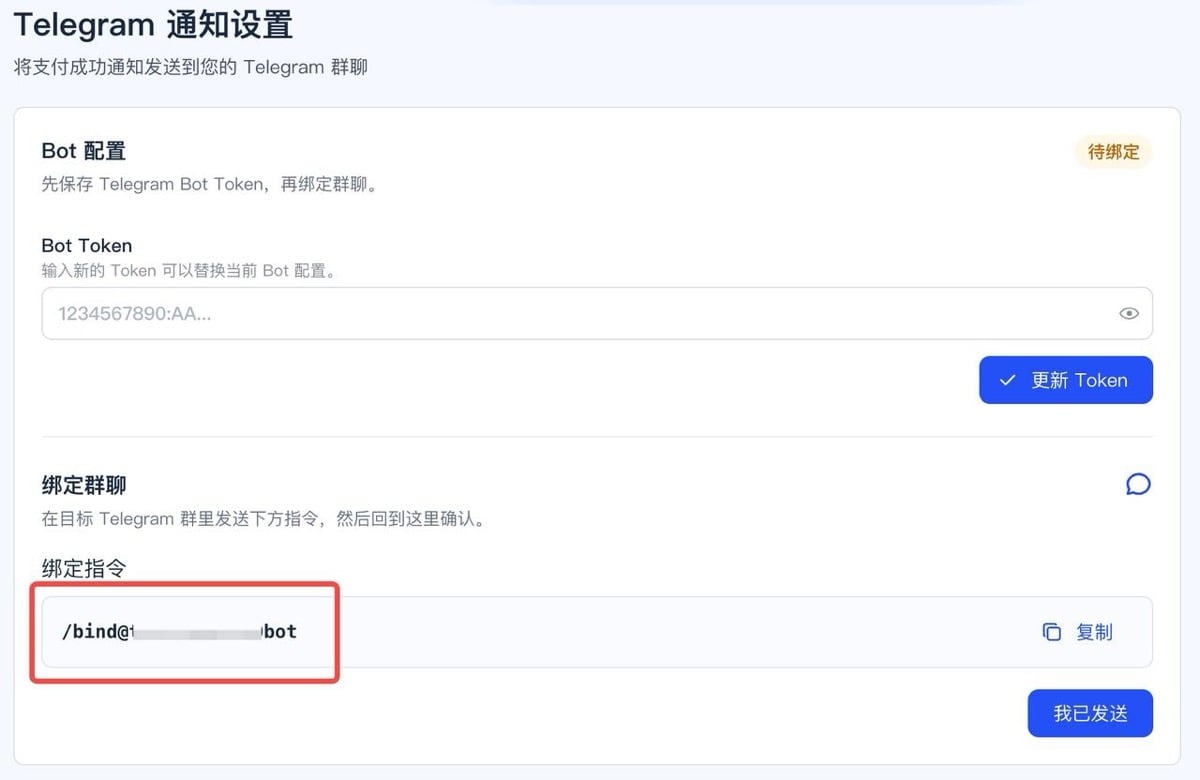
- Create a Telegram group for receiving notifications
- Add the Bot to that group
- Send the binding command shown in the merchant portal to the Bot
- Return to the merchant portal and click
I have sent it
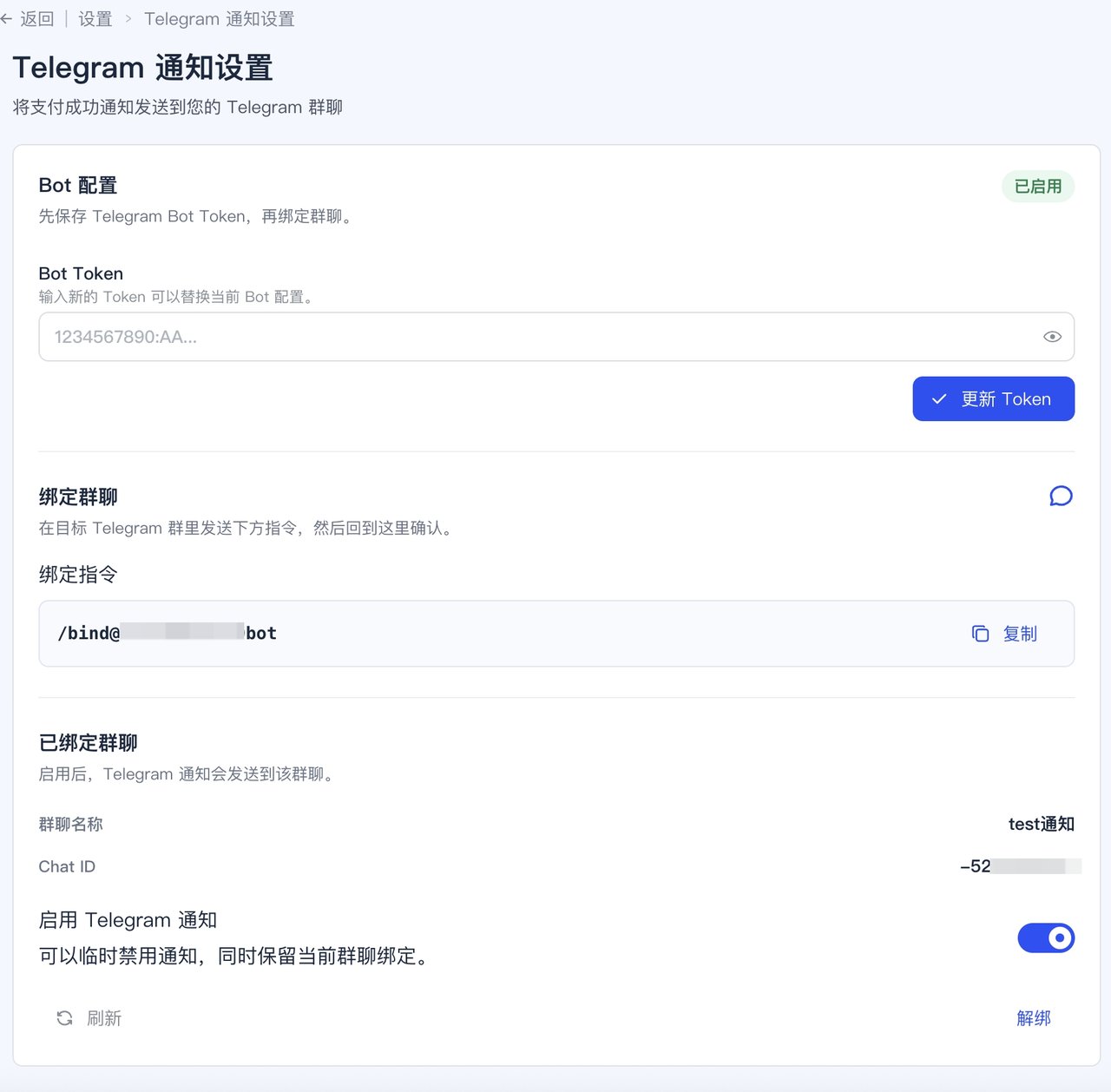
What you get after setup
Once setup is complete, your team can receive StablePay payment notifications in Telegram and react more quickly to:- successful payments
- failed or expired payments
- underpaid and overpaid orders
- risk-review and exceptional payment cases
Example notification output
The example below shows what Telegram notifications can look like after setup is complete.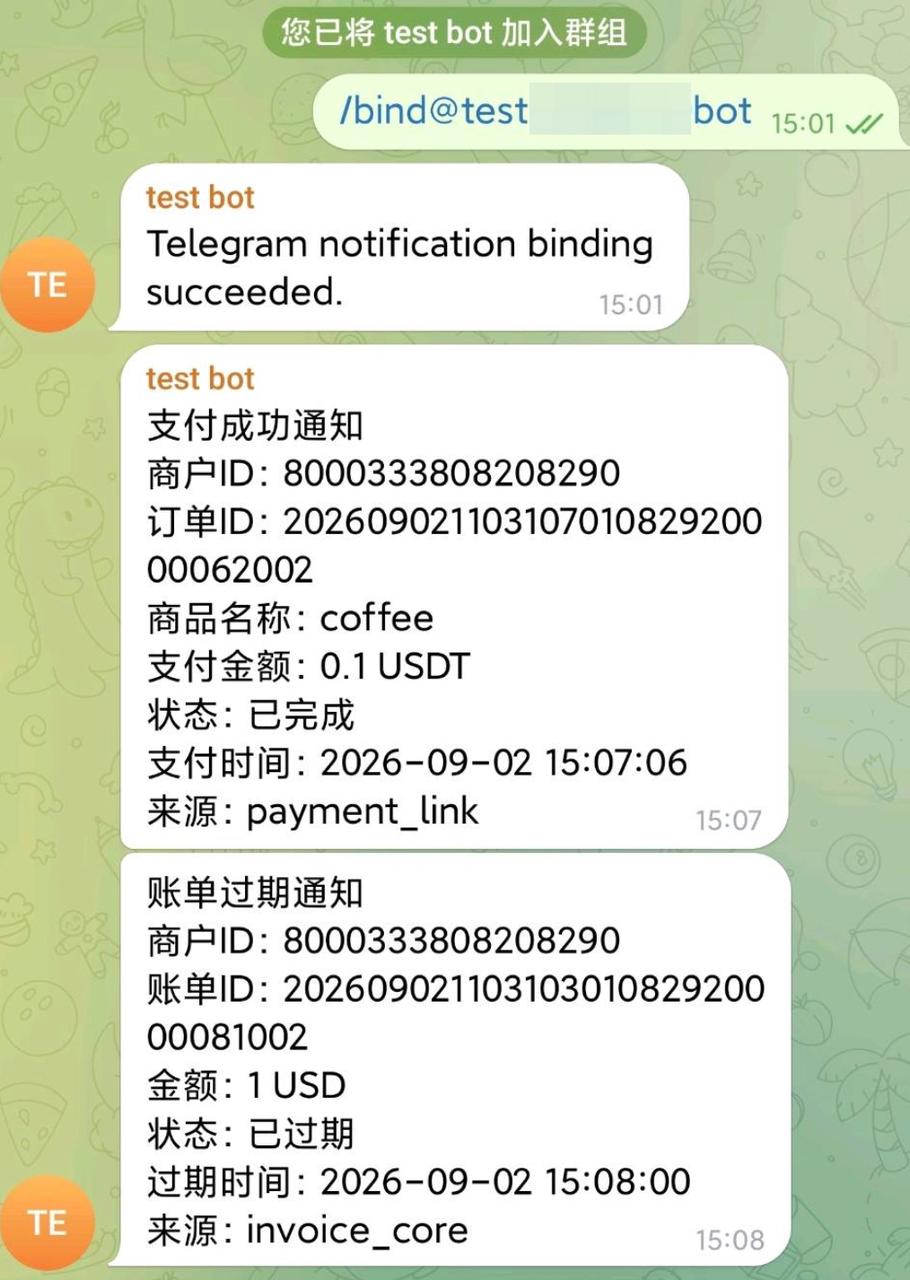

Important notes
- This page describes the current self-service setup flow and no longer uses a request-based enablement process
- This release currently supports payment-related events only
- It does not yet include refunds, subscriptions, payouts, settlements event notifications
- If you rotate the Bot Token, recheck the binding status afterward
- This is an optional operational setup and does not block your use of Checkout, Payment Links, Invoicing, or the API