
This guide explains the most common connection failures and recommended fixes when a payer chooses Binance Wallet on a StablePay payment page and connects by scanning a WalletConnect QR code. It is written as a practical troubleshooting page. Binance Wallet is used here as the example, but similar symptoms can also appear with other mobile wallets that rely on WalletConnect.Documentation Index
Fetch the complete documentation index at: https://docs.stablepayfi.ai/llms.txt
Use this file to discover all available pages before exploring further.
When this applies
Use this guide when a payer on iPhone or Android:- opens a StablePay payment page
- selects
Binance Wallet - scans the WalletConnect QR code to connect
Common symptoms
| Device | Common message | What it usually looks like |
|---|---|---|
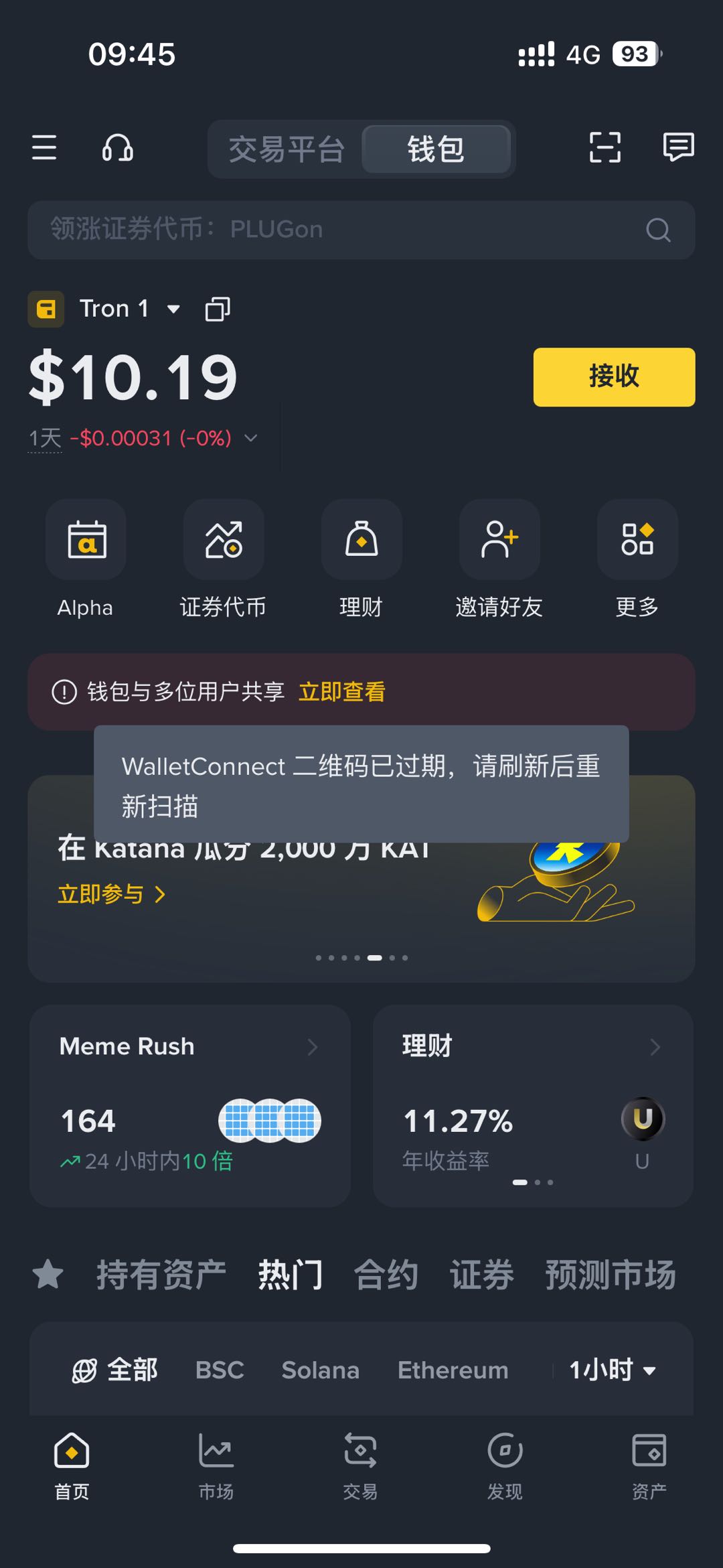
| iOS | “WalletConnect QR code expired” or a similar message | Scanning does not enter a normal connection flow |
| Android | “Unable to connect to WalletConnect” or a similar message | Scanning does not establish a connection, or the flow stalls |
Error examples
iOS example
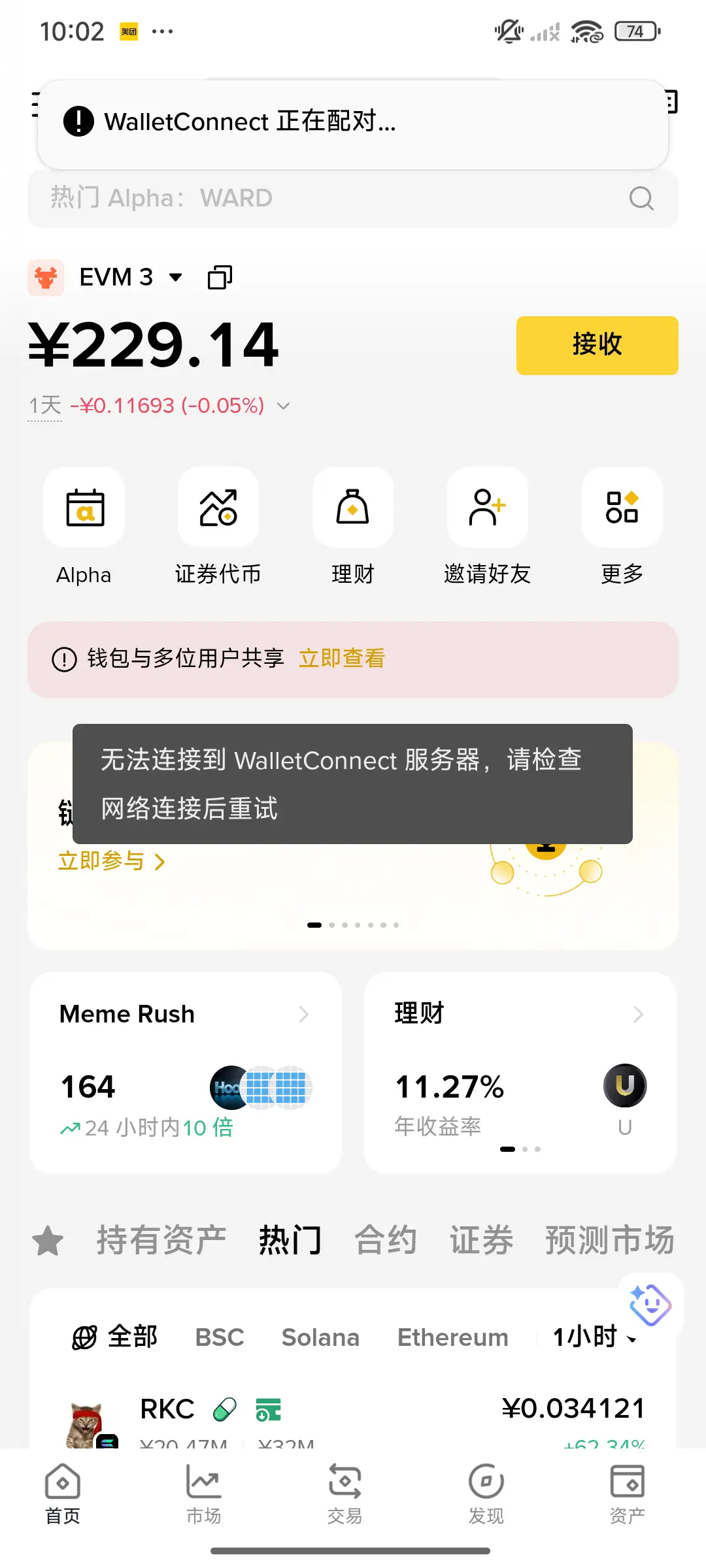
Android example
What this usually means
In many cases, this does not mean the QR code is truly expired. It usually means the phone’s current network cannot reliably reach the WalletConnect service, so the connection flow does not complete successfully. In other words, the problem is often in the connectivity path rather than in the payment QR code itself.Recommended fix
Try the following in order:- Switch the phone to a network environment that can reliably reach WalletConnect services.
- Return to the StablePay payment page and refresh or reopen the WalletConnect QR code.
- Open Binance Wallet and scan the new WalletConnect QR code again.
- Confirm the connection inside the wallet.
- Once connected, continue the payment flow.
If it still fails
If the connection still does not work after changing networks, try:- switching to a different network node or connection method
- fully closing and reopening Binance Wallet
- re-entering the payment page and generating a fresh QR code
- using another available payment method shown on the page
Practical guidance
- Do not keep rescanning an old QR code after waiting too long; refresh the QR code first.
- If WalletConnect failures happen repeatedly on mobile, check network stability before retrying many times.
- When one network environment repeatedly fails, switching networks is usually more effective than repeatedly rescanning.